How to create a Delta Exchange API key
Connect your Delta account and be protected in about five minutes. There is no extension to install — you create a Trading API key on Delta, whitelist our IP, and paste the key into TradeGuardX.
The Delta screens, in order
Captions are the instruction — if an image has not loaded, the caption alone is enough to follow. Tap any screenshot to open it full size.
1Step 1 — Open Delta and tap Algo Hub 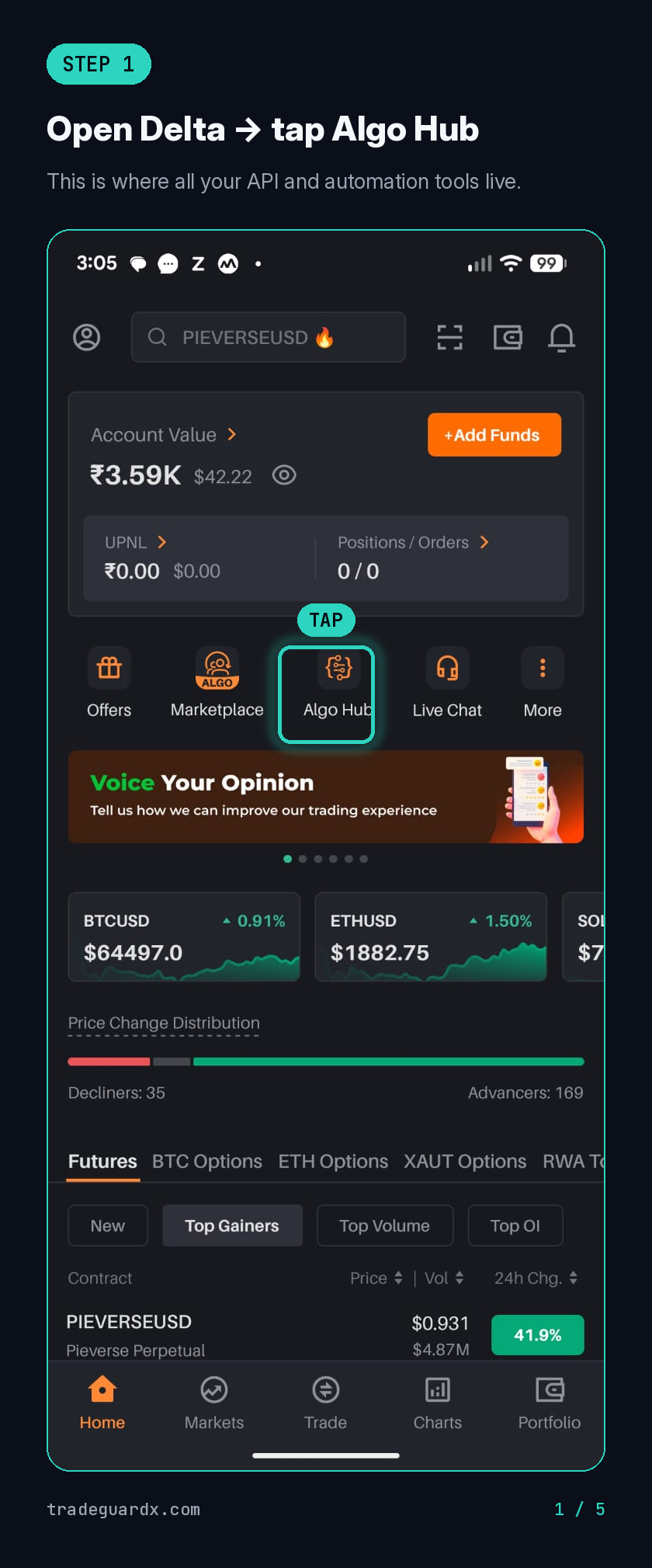 Open full size ↗
2Step 2 — Tap APIs 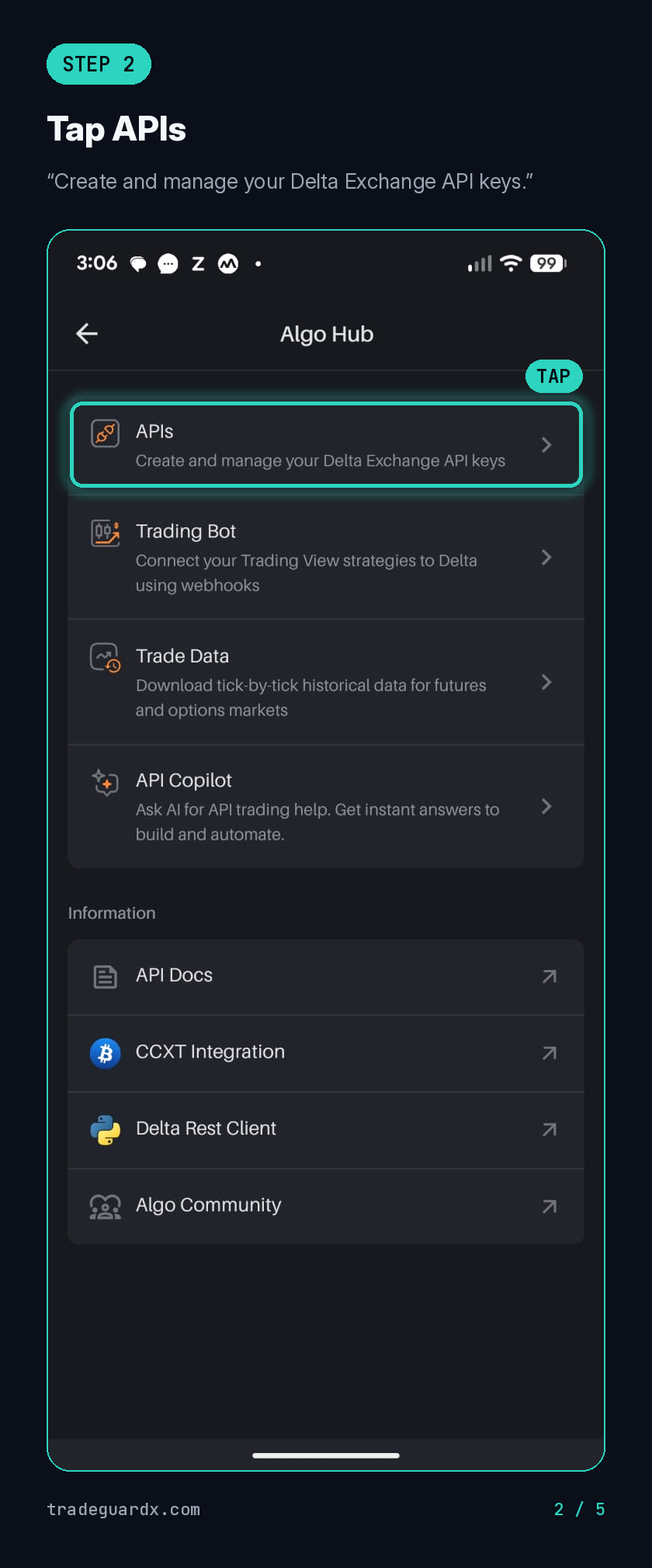 Open full size ↗
3Step 3 — Name the key, paste our IP, then tap + to add it. Typing the IP alone will not save it 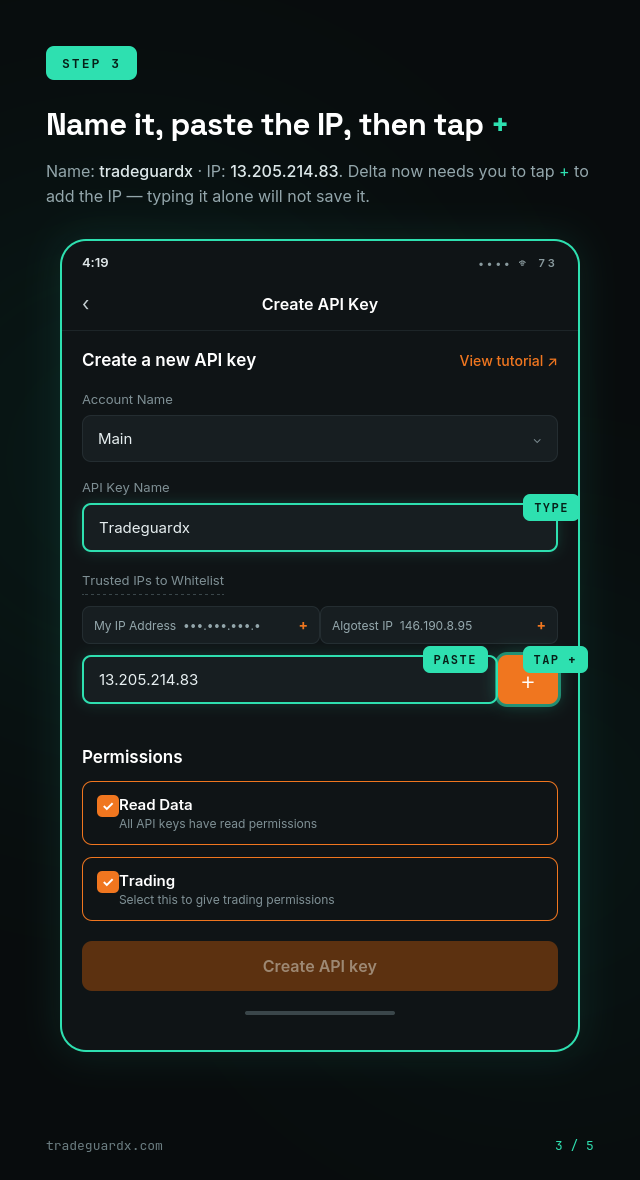 Open full size ↗
4Step 4 — The IP shows as a chip; tick Trading, then tap Create API key 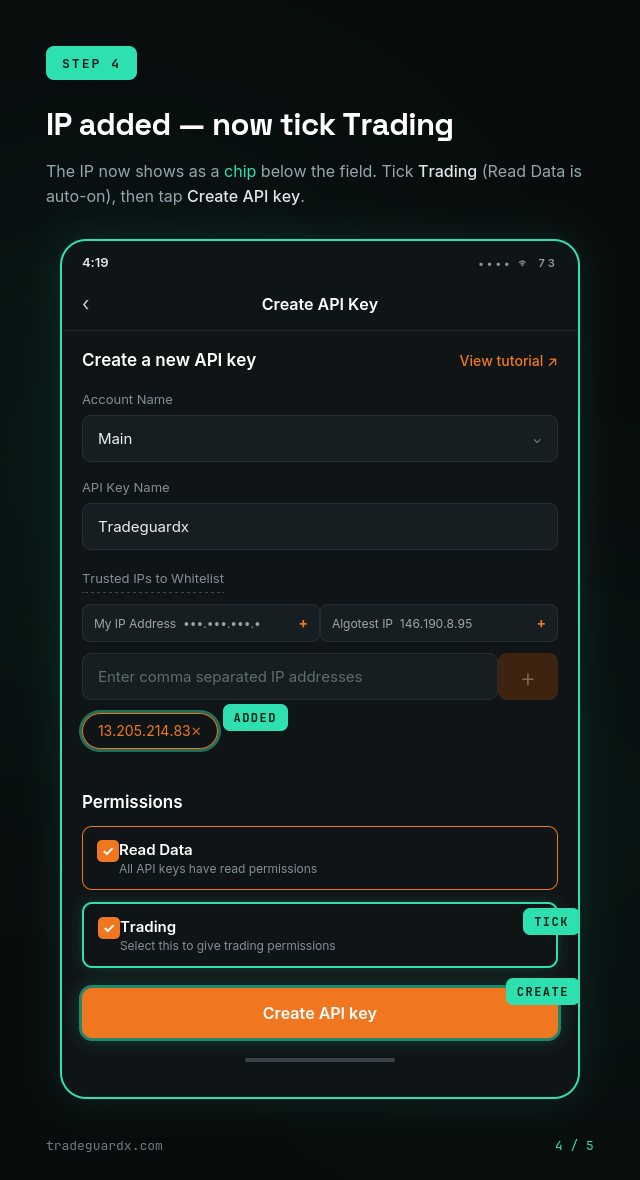 Open full size ↗
Before you start
- Pick the right region: Delta India and Delta Global are separate accounts with separate keys. A Global key on an India account fails in a way that looks identical to a bad key — this is the most common connection failure on Delta.
- A new key needs about five minutes: Delta takes roughly five minutes to activate a freshly created key. An immediate rejection is often just impatience.
- Delta is the one venue you can do this on a phone: The path in the Delta app is Algo Hub → APIs. On the others it has to be a computer.
Set up Delta Exchange — step by step
Follow these in order. The only part done outside TradeGuardX is creating the API key on Delta.
- 1
Create your TradeGuardX account
Sign up at tradeguardx.com/signup with email or Google. No card is needed to start.
- 2
Start adding your Delta account
In the dashboard, open Accounts → "Add trading account" and choose Delta Exchange (India or Global).
- Name the account. Keep this form open — it shows the IP you need to whitelist and is where you paste your key.
- The API Key and Secret are required to create the account, so you will finish this form in step 4.
- 3
Create a Trading API key on Delta Exchange
Open your Delta API keys page at delta.exchange/algo/delta-exchange-apis (log in first) and click "Create a new API key". Delta's form asks for just a few things:
- API Key Name — type anything you like (e.g. "TradeGuardX"). It is just a label.
- Whitelisted IP — paste TradeGuardX's IP (13.205.214.83). The connection panel shows it with a Copy button. Delta requires this for Trading keys.
- Permissions — tick "Trading". "Read Data" is always on (leave it); there is no Withdrawal option, so your key can never move funds.
- Click "Create API key", then copy the API Key and API Secret. Delta shows the secret only once — copy it immediately.
A read-only key (Trading unticked) can only send alerts — it cannot run the kill switch. For enforcement, tick Trading and whitelist the IP. On the Delta mobile app the same form is at Algo Hub → APIs; there, typing the IP is not enough, you must tap + to add it.
- 4
Connect the key in TradeGuardX
On the Add-account form (or the Delta connection panel), paste your API Key and API Secret and create/connect. The API key and secret are required to create a Delta account.
- We validate the key against Delta immediately and show your linked Delta account and email.
- If Delta rejects it, check you used the right region key and gave it a few minutes — new keys take ~5 minutes to activate.
- Your secret is encrypted (KMS) before storage and is never shown again.
- 5
Confirm you're protected
The connection should read CONNECTED and the header shows a green "Protected" pill.
If it shows "Alerts only" or "Unprotected", the key is read-only or the IP is not whitelisted — recreate the key with the Trading permission and the IP whitelisted.
- 6
Set your guardrails
Open Rules and configure the protections you want — daily loss limit, max trades per day, loss-streak cooldown, risk per trade, and more.
- Each rule has a "How it works" toggle explaining exactly what it does.
- Saving a tighter limit applies instantly; loosening one waits 24 hours (a cooling-off so you cannot weaken protection on impulse).
- 7
Trade — you're covered
Open the Live tab to watch your session in real time: status, guardrail meters, and activity. If a rule is breached, the kill switch cancels your orders, closes your positions, and locks the account with an unlock countdown.